Installation Guide
This guide takes you from download to a running, licensed signing service — and shows you how to manage, debug and restart it afterwards. Allow about 15 minutes.
Requirements
- Windows 10 / 11 or Windows Server 2016+ (64-bit), local Administrator rights.
- About 400 MB of free disk space. The installer is self-contained — no separate .NET runtime is needed.
- A USB token (SafeNet, YubiKey, ePass2003…) with its vendor driver, if you will sign with a hardware certificate.
Step 1: Download
- Log in to your OneSigner Portal account.
- Open Downloads and download the latest
OneSigner-Setup.exe.
Step 2: Install Your USB Token Driver
OneSigner talks to your token through the vendor's Windows driver, so install it first:
- SafeNet eToken: SafeNet Authentication Client (usually provided by your CA).
- YubiKey: YubiKey Smart Card Minidriver from yubico.com.
- ePass2003: the driver package from your CA.
Verify: open certmgr.msc → Personal → Certificates. Your certificate must be listed with a small key icon (private key present). If it is missing, use the token vendor's tool to register the certificate. Details: Certificate Not Found.
Step 3: Run the Installer
Right-click OneSigner-Setup.exe → Run as administrator and follow the wizard.
3.1 Choose the destination folder
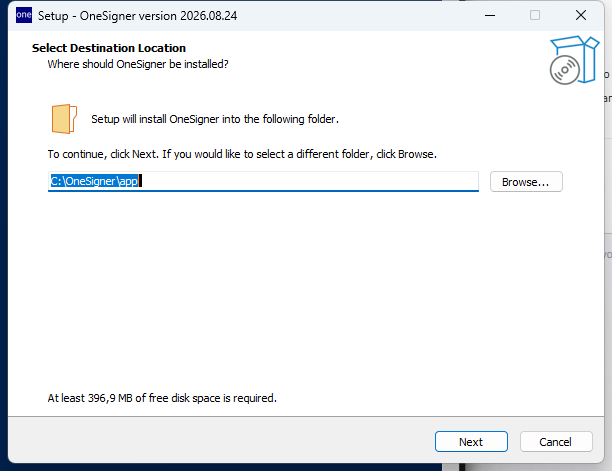
The default C:\OneSigner\app is recommended — signing folders (C:\OneSigner\unsigned, C:\OneSigner\signed) are created next to it. Click Next.
3.2 Confirm and install
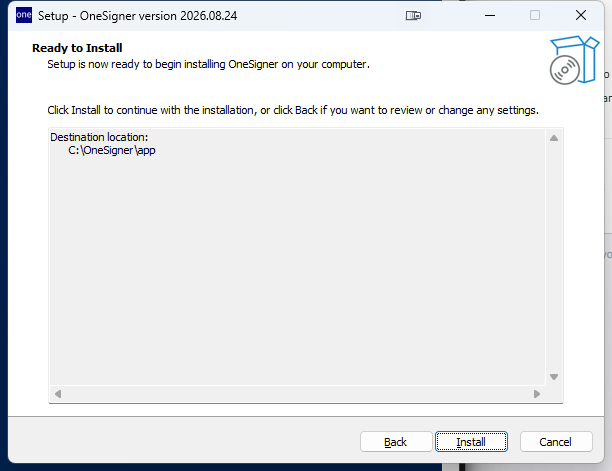
Click Install. Setup copies the application files:
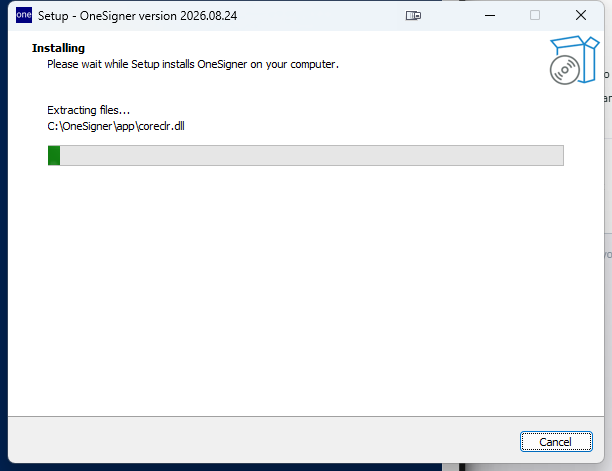
3.3 The service installs automatically
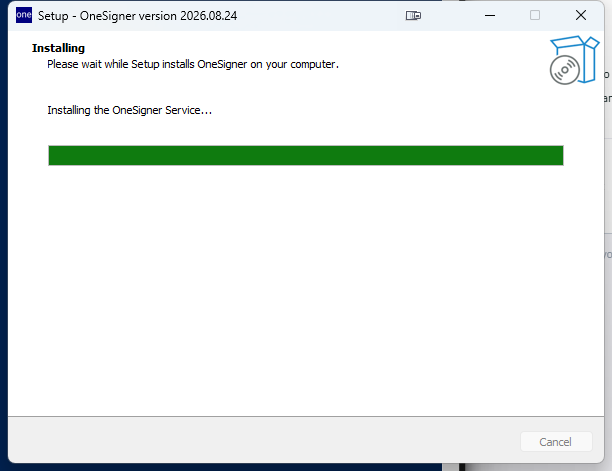
At the end of the copy phase, Setup registers and starts the OneSignerService Windows service for you (LocalSystem account, automatic start) — no manual step needed:
3.4 Finish
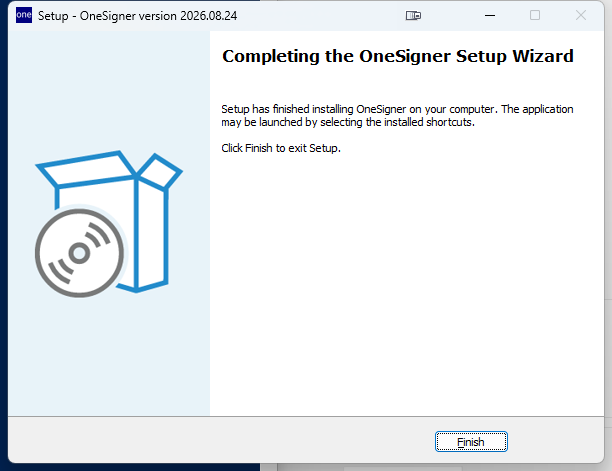
Click Finish. A tray icon is registered to start with Windows, and shortcuts named OneSigner Config are placed on the desktop and Start menu.
Upgrading later? Just run the newer Setup over the old install — your appsettings.json configuration is preserved.
Step 4: First-Time Configuration
Open OneSigner Config from the desktop. The General tab appears, and Service Control should already show Status: Running:
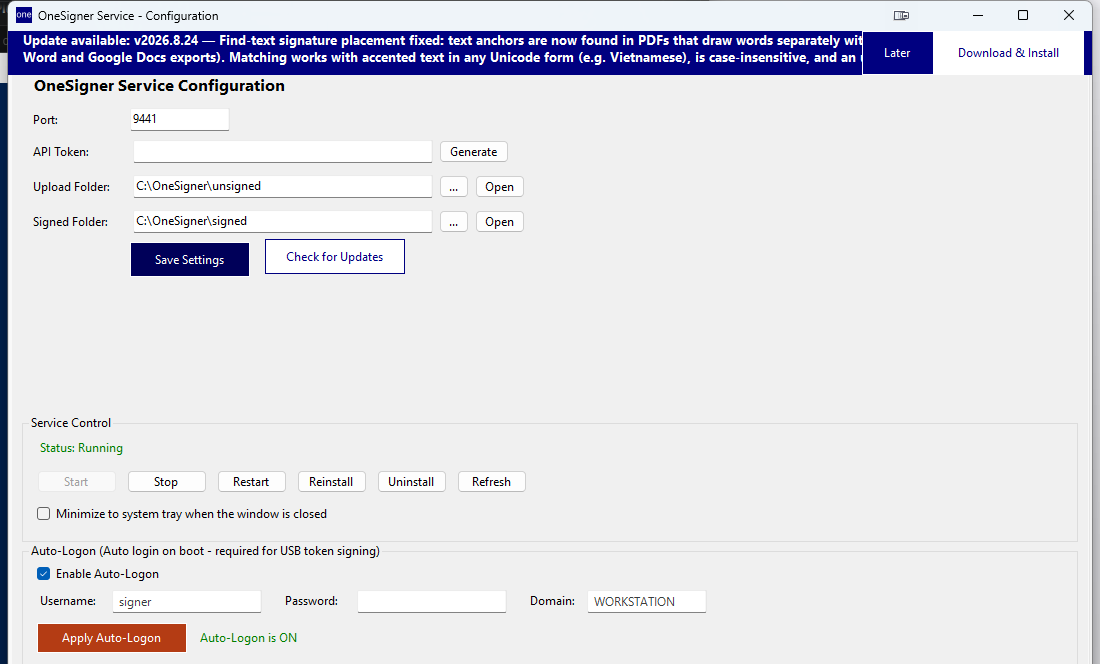
- Port: the REST API / web portal port. Default is
9440— change it only if another application already uses that port. (The screenshots in this guide use9441for exactly that reason.) - API Token: click Generate to create a strong random token. This is the Bearer token every API client will send — treat it like a password and never publish it.
- Upload Folder / Signed Folder: where uploaded files land and where signed output is written.
- Click Save Settings, then Restart in Service Control so the service picks up the changes.
Step 5: Enable Auto-Logon (for unattended signing)
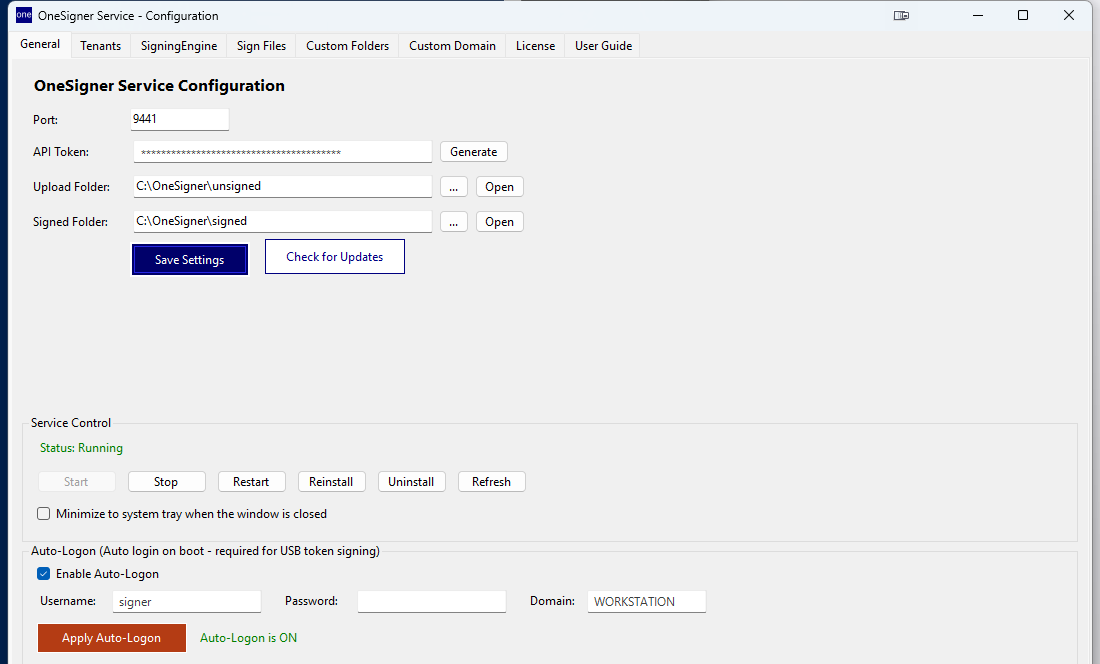
USB token signing needs an interactive Windows desktop session. For a 24/7 signing server, enable Auto-Logon at the bottom of the General tab: enter the Windows username and password and click Apply Auto-Logon. The machine then logs that user in automatically after every reboot, keeping a desktop session available for the token. Details: Signing Fails in Service Mode.
Step 6: Activate Your License
Open the License tab:
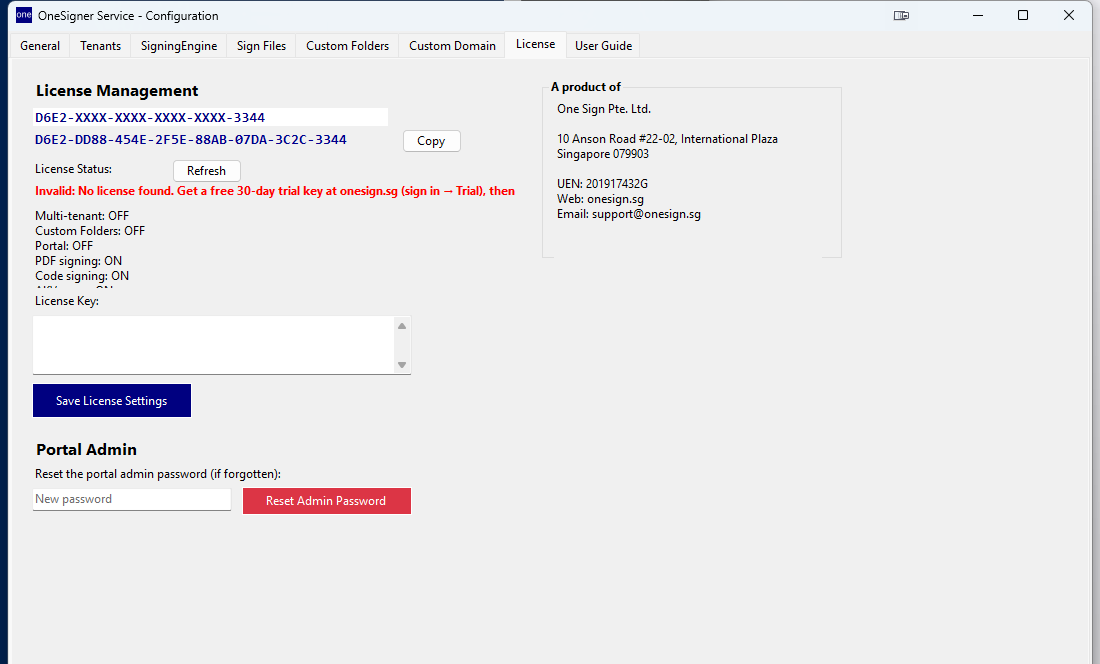
- Click Copy next to the Hardware ID.
- Sign in at onesign.sg → Trial for a free 30-day key, or open your purchased plan, and paste the Hardware ID to issue the key.
- Paste the key into the License Key box → Save License Settings → Refresh.
The status line turns green and the capability list (Multi-tenant, Custom Folders, Portal, PDF signing, Code signing…) reflects your plan. Full walkthrough with portal screenshots: Configuration Guide. Troubleshooting: License Activation.
Step 7: Verify the Installation
- Open
http://localhost:9440/portalin a browser (use your port if you changed it). The portal sign-in page confirms the service is up:
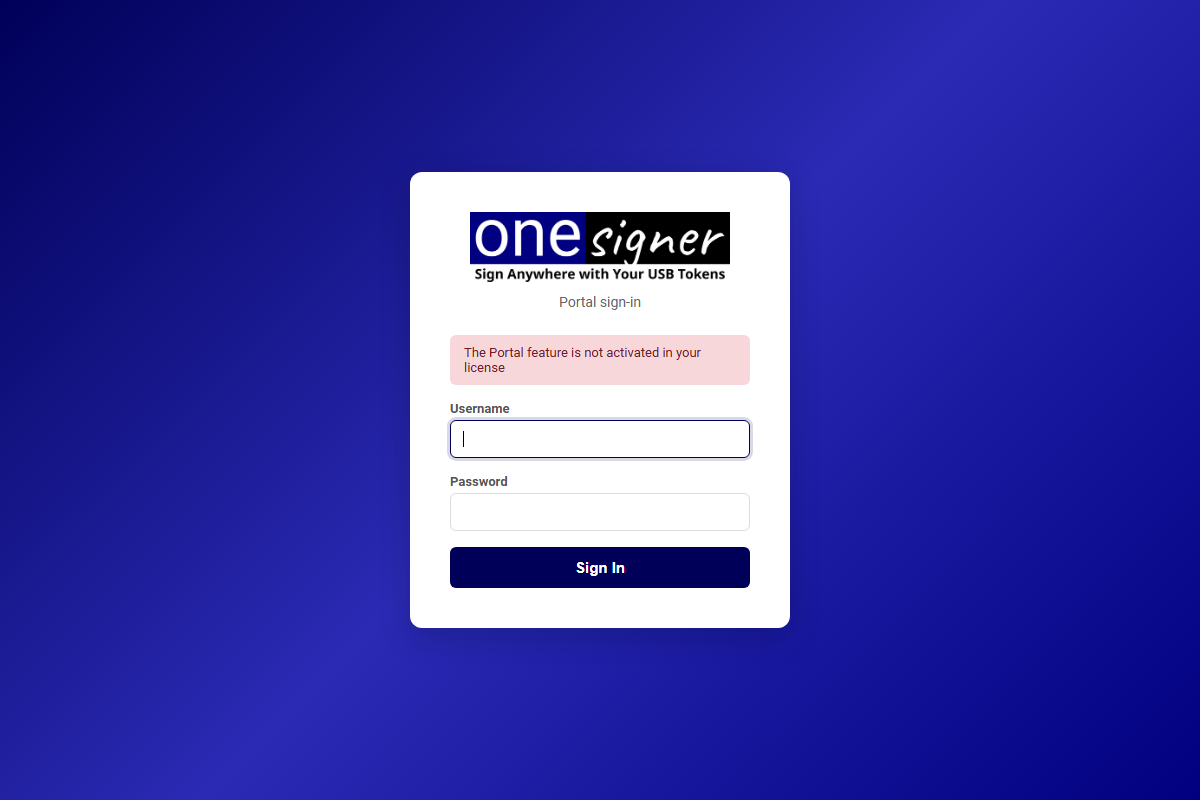
Note: the User Signing Portal itself unlocks with a license that includes the Portal feature (the trial does). If you ever lose the portal admin password, reset it on the License tab → Portal Admin.
- Or test the API from a terminal:
curl http://localhost:9440/ -H "Authorization: Bearer YOUR_API_TOKEN"Step 8: Create Your First Signing Profile
Go to the SigningEngine tab → + to add a PDF or Code Signing profile — pick the certificate, store the token PIN, choose the signature position, then Test Sign:
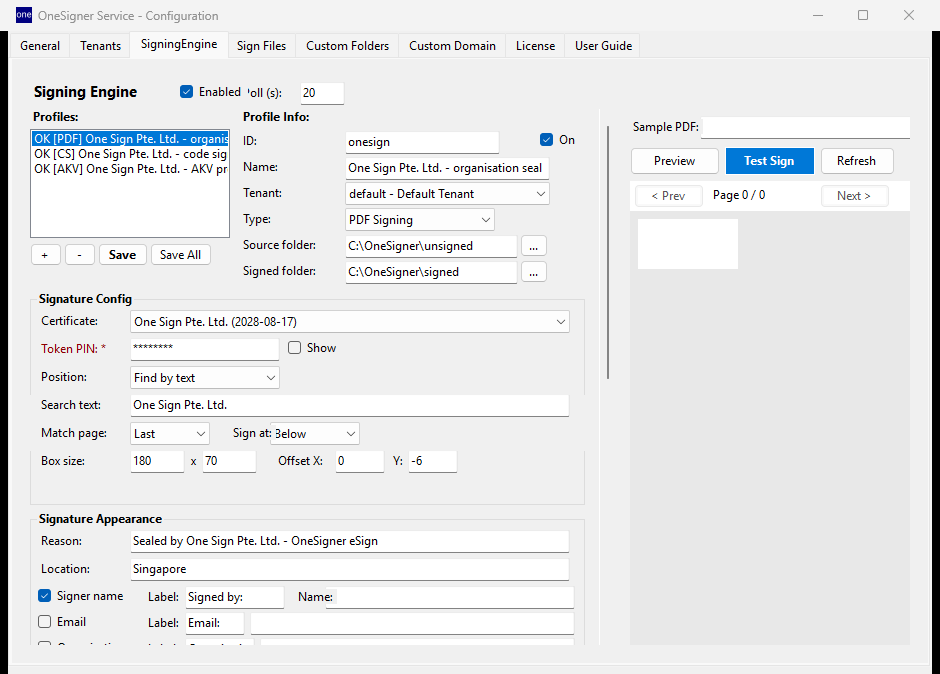
Full walkthrough: Signing Profiles and Quick Start.
Managing the Service
From the GUI
The Service Control box on the General tab has everything: Start / Stop / Restart, Reinstall (re-registers the service after moving the folder), Uninstall and Refresh (re-reads the current status).
From the command line (run as Administrator)
# status
sc query OneSignerService

# stop / start / restart
net stop OneSignerService
net start OneSignerService

# PowerShell one-liner restart
Restart-Service OneSignerService -Force

# where is it installed, which account runs it?
sc qc OneSignerService

# make sure it starts automatically after reboot
sc config OneSignerService start= auto
All configuration lives in C:\OneSigner\app\appsettings.json. The GUI writes it for you; if you ever edit it by hand, restart the service afterwards — it is read at startup.
Debugging Problems
Where the logs are
- Windows Event Log: run
eventvwr.msc→ Windows Logs → Application — service start/stop errors appear with source OneSignerService / .NET Runtime. - Live console output: stop the service, then run
C:\OneSigner\app\OneSignerService.exedirectly in an Administrator terminal — you see every request and signing attempt in real time. PressCtrl+Cto quit andnet start OneSignerServiceto go back to service mode. - Signing history: Portal → Logs records every signed file with timestamp and result.
Common issues
| Symptom | Cause & fix |
|---|---|
| Service stops right after starting | Port already in use — run netstat -ano | findstr 9440; change Port in the GUI and restart. Or appsettings.json was hand-edited into invalid JSON — validate it. |
http://localhost:9440 unreachable | Service stopped (sc query OneSignerService), wrong port, or firewall blocking remote access — allow the port in Windows Defender Firewall for LAN clients. |
| Test Sign works in the GUI but service signing fails | The service runs in Session 0 and cannot see the token — enable Auto-Logon. See Signing Fails in Service Mode. |
| License status "Invalid: No license found" | Activate a trial or paste your license key (Step 6). The key is bound to the Hardware ID of this machine. |
| Certificate missing from the profile dropdown | Token driver not installed or certificate not registered — see Certificate Not Found. |
| Other errors | Common Errors & Solutions |
Updating
The Config app checks for updates and shows a banner with Download & Install when a new version is available (or use Check for Updates on the General tab). Updates keep your configuration and license.
Uninstalling
Windows Settings → Apps → OneSigner → Uninstall. The uninstaller stops and removes the Windows service automatically. Your appsettings.json, license and the unsigned/signed folders are left in C:\OneSigner — delete them manually if you no longer need them.