Setting Up Signing Profiles
A signing profile tells OneSigner how to sign automatically: which certificate to use, where the signature goes on the page, and how it looks. Once a profile is enabled, everything that reaches its source folder — via folder watch, API upload, or the portal — is signed without human interaction.
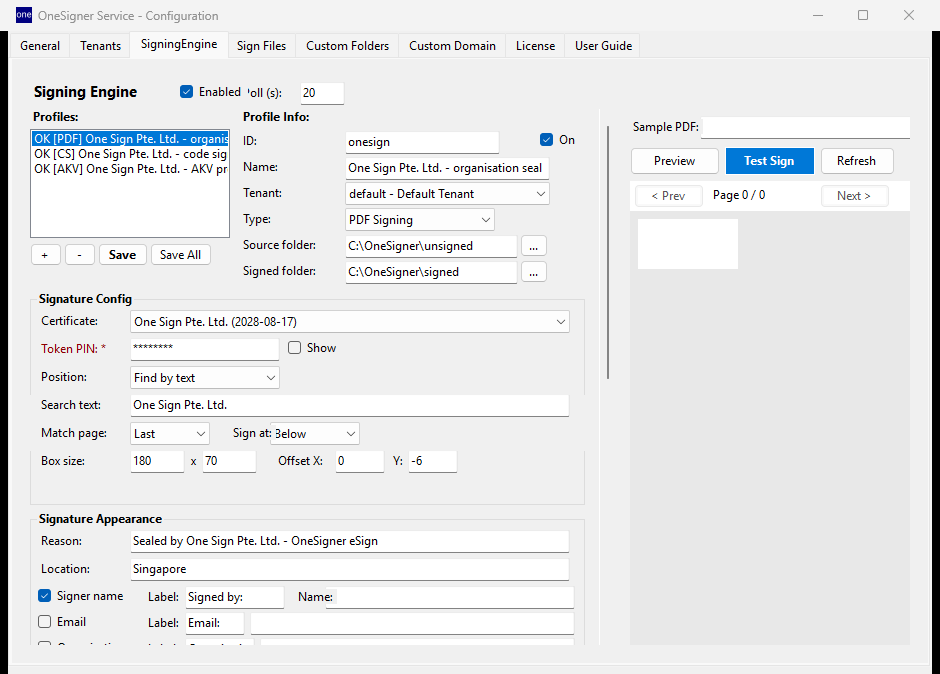
Creating a Profile
- Open OneSigner Configuration → SigningEngine tab and make sure the engine is Enabled.
- Click + to add a profile and fill in:
Basic Settings
- ID / Name: a short id (used in API calls as
profileId) and a descriptive name. - Tenant: which tenant the profile belongs to — API uploads from that tenant auto-match this profile.
- Type: PDF Signing (this guide), Code Signing, or AKV Proxy.
- Source folder / Signed folder: the watch folder and the output folder. Keep them separate to avoid re-signing loops.
Signature Config
- Certificate: pick from the certificates detected in the Windows store / USB token.
- Token PIN: saved in the profile; allows fully unattended signing with no PIN dialog.
Position — Two Methods
1. Find by text (recommended)
OneSigner searches the PDF for a text pattern and anchors the signature to it:
- Search text: e.g.
"Authorized Signature"or your company name printed above the signature line. - Match page: first, last, or all occurrences.
- Sign at: below / above the match, with optional X/Y offsets in points.
This adapts automatically to documents whose layout shifts from page to page.
2. Fixed position
- Page: a page number (or last page).
- X / Y: coordinates in PDF points (1 pt = 1/72 inch), measured from the bottom-left corner of the page.
Tip: you can also override the position per request through the API — see Positional Signing API — or place it interactively in the browser with visual signing.
Box Size and Appearance
- Box size: width × height in points (e.g. 180 × 70).
- Appearance: signing reason, location, signer name, email, organisation, date format, and an optional graphic/logo. See Customizing Signature Appearance.
Test Before You Trust
Load a sample PDF in the right-hand panel and click Test Sign. OneSigner renders the signed page so you can check position and appearance before enabling the profile in production.
Multiple Signatures per Profile
A profile can contain several signature configurations, each with its own certificate and position — e.g. "Prepared by" and "Approved by" on the same document. Signatures are applied incrementally so each remains valid. See Multi-Signature Workflows.
How Profiles Are Matched
When a file arrives via POST /api/upload, OneSigner picks the profile whose tenant matches the API token (or whose source folder matches the upload target). Manual signing via POST /api/signing/sign selects a profile explicitly by profileId.