Multi-Tenant Setup: Sign for Many Clients From One Machine
One OneSigner machine can sign for many separate clients or departments — each with its own token, its own folders, its own API key, and no way to see each other's files. This guide sets up a two-tenant "signing bureau" from scratch. (For the raw API endpoints, see the tenant management API reference.)
When you need tenants
- Accounting or corporate-secretarial firms signing on behalf of multiple client companies, each with the client's own token and certificate.
- Groups of companies where each subsidiary has its own document-signing certificate but shares one IT-managed box.
- MSPs offering signing as a service to customers, with isolated folders and API keys per customer.
Step 1 — Plug in one token per client
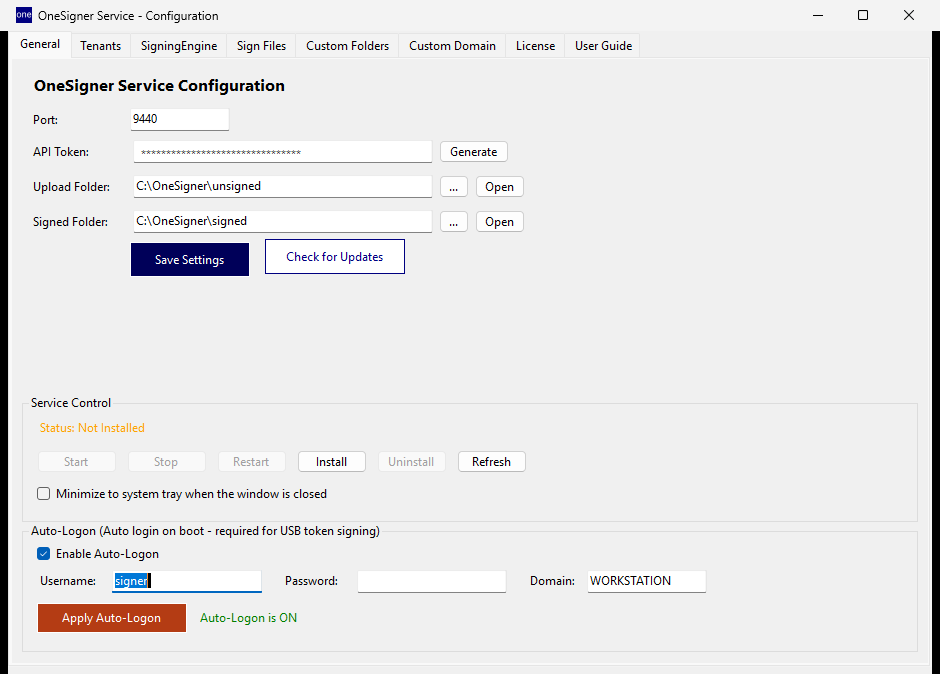
Connect each client's USB token to the machine (a powered USB hub is fine). Open the OneSigner GUI and confirm every certificate appears under the certificate list, then store each token's PIN once — it is saved on this machine and never asked again.
Step 2 — Create the tenants
- In the GUI, add a tenant per client — say
acmeandglobex. Each tenant gets its own bearer token for the REST API. - Each tenant automatically gets its own folder tree (source / signed / failed). Files and API calls under one tenant are invisible to the others.
Step 3 — One signing profile per tenant
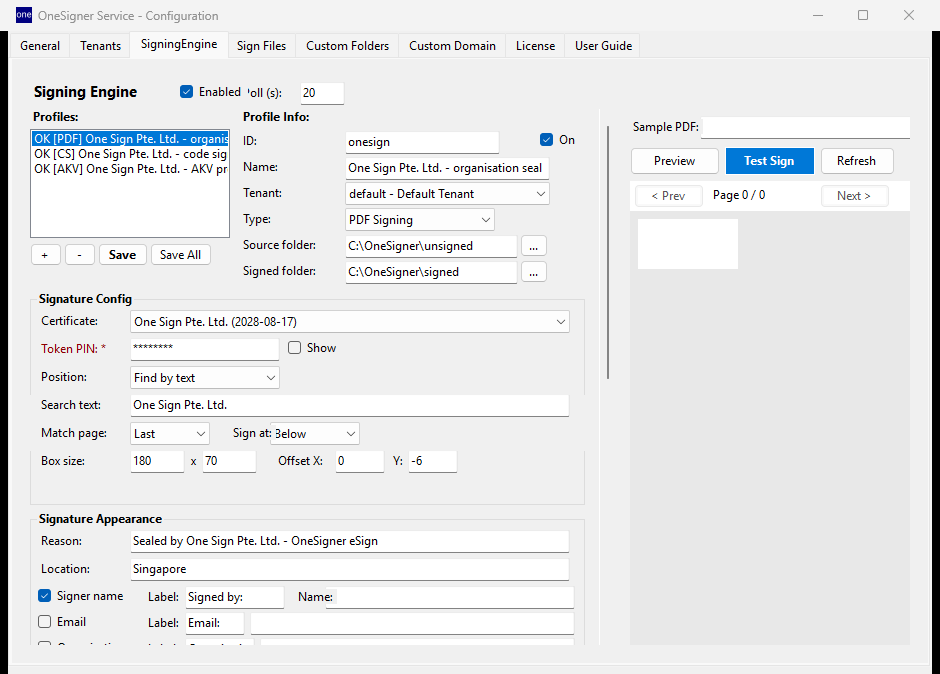
Create a PDF (or code-signing) profile per client and bind it: the profile selects that client's certificate by thumbprint, sets the signature appearance and position, and is matched to the tenant by TenantId (or by its source folder). From then on, matching is automatic — anything arriving under acme is signed with Acme's certificate, never Globex's.
Step 4 — Hand each client their channel
- API: give each client their own tenant token —
curl -H "Authorization: Bearer <ACME_TOKEN>" -F "file=@invoice.pdf" "https://sign.yourco.com/api/upload?download=true" -o signed.pdf - Folders: map each client's network share to their tenant's source folder — drop in, signed file comes out.
- Portal: create portal user accounts scoped to the right tenant so client staff can sign in the browser.
Good to know
- Tenant count is a plan limit — see license plans (Professional and Enterprise are multi-tenant).
- The signing log records tenant, profile, certificate and file for every operation — clean per-client reporting.
- Tokens have per-session PIN policies; OneSigner opens sessions per profile, so one client's stuck token never blocks another tenant's queue.