Quick Start Guide
OneSigner installed and licensed? Here are the four fastest ways to get a signed PDF — pick the one that matches how you work.
Prerequisites
- OneSigner service installed and running (Installation Guide)
- USB token plugged in, certificate visible in
certmgr.msc - License or trial key activated
Option 1: Sign From the Browser (Sign Myself)
The quickest interactive way — no profile needed:
- Open the web portal (
http://localhost:9440) and go to Sign myself. - Click Open PDF — the document renders in the browser.
- Click or drag on the page to place the signature box exactly where you want it.
- Click Sign document — Windows asks for your certificate and token PIN, and the signed PDF is downloaded. With OneSignerBridge, the PDF never leaves your machine.
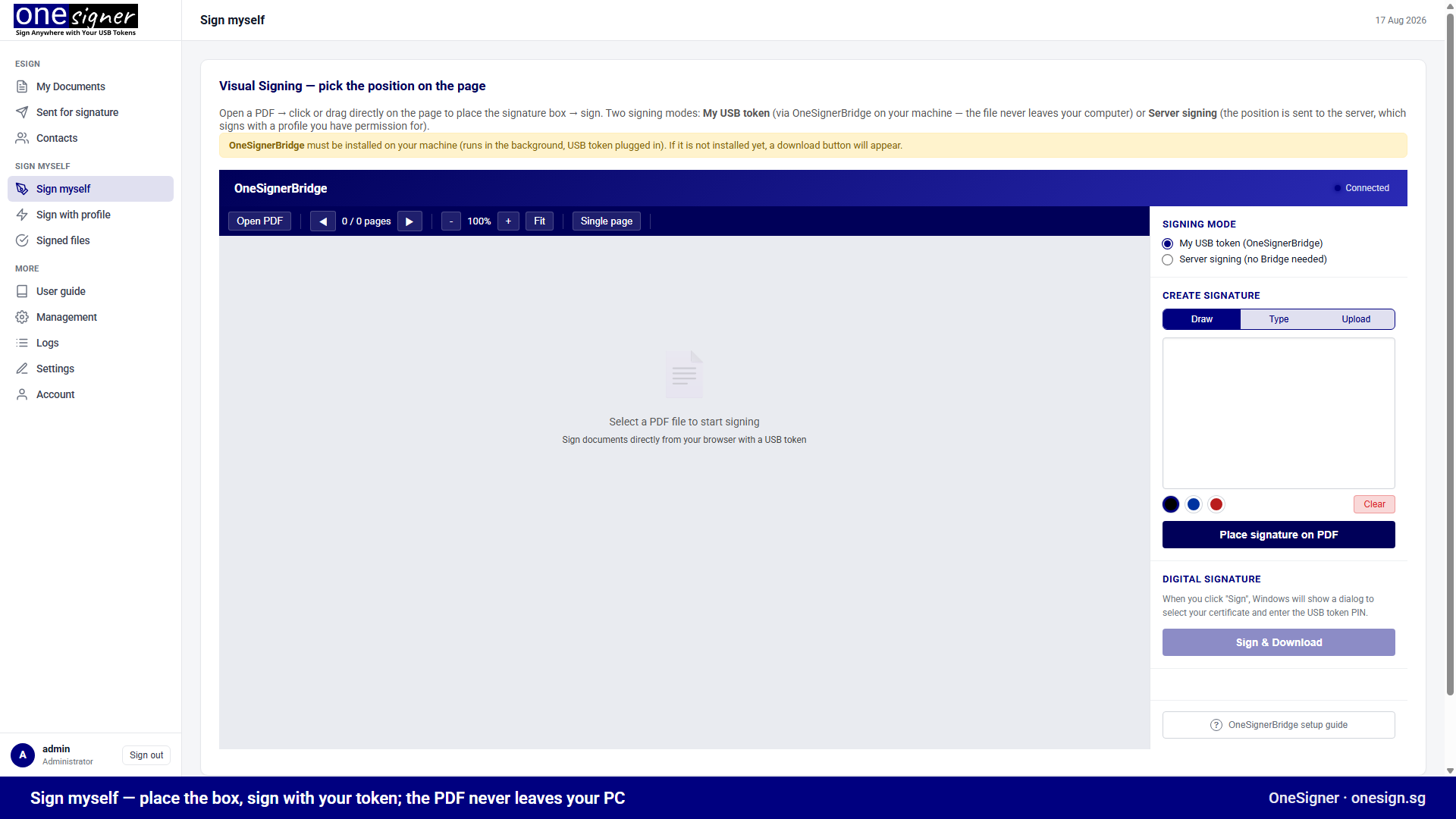
Full guide: Visual Signing with OneSignerBridge.
Option 2: Auto-Sign With Folder Watch (Zero Code)
- Open OneSigner Configuration → SigningEngine tab and tick Enabled.
- Create a profile: type PDF Signing, source folder (e.g.
C:\OneSigner\unsigned), signed folder, your certificate, token PIN, and the signature position (search text or fixed coordinates). - Click Save, then use Test Sign with a sample PDF to preview the result.
- Drop any PDF into the source folder — it is signed within seconds and moved to the signed folder.
Option 3: Sign via REST API
curl -X POST "http://localhost:9440/api/upload?download=true" \
  -H "Authorization: Bearer YOUR_API_TOKEN" \
  -F "file=@document.pdf" -o document-signed.pdf
The file is matched to a signing profile, signed with the USB token, and returned directly. Without ?download=true the API returns JSON and stores the signed file in the signed folder. See Upload & Sign API.
Option 4: Send for Signature (eSign)
Need someone else to sign? Upload the PDF under My Documents, click Prepare & send, drop a signature field on the page, add the recipient's email, and send. They sign from a browser link — no account needed. See the eSign Portal Overview.
Verify the Signature
Open the signed PDF in Adobe Acrobat Reader — the signature panel shows the certificate, timestamp, and validity. Multiple signatures on the same document each remain individually valid.