eSign Portal Walkthrough: A Two-Signer Agreement, Start to Finish
The fastest way to understand OneSigner eSign is to walk one document through it. Here's a real two-signer service agreement, from upload to a fully signed, audit-trailed PDF — with screenshots.
1. Upload — My Documents
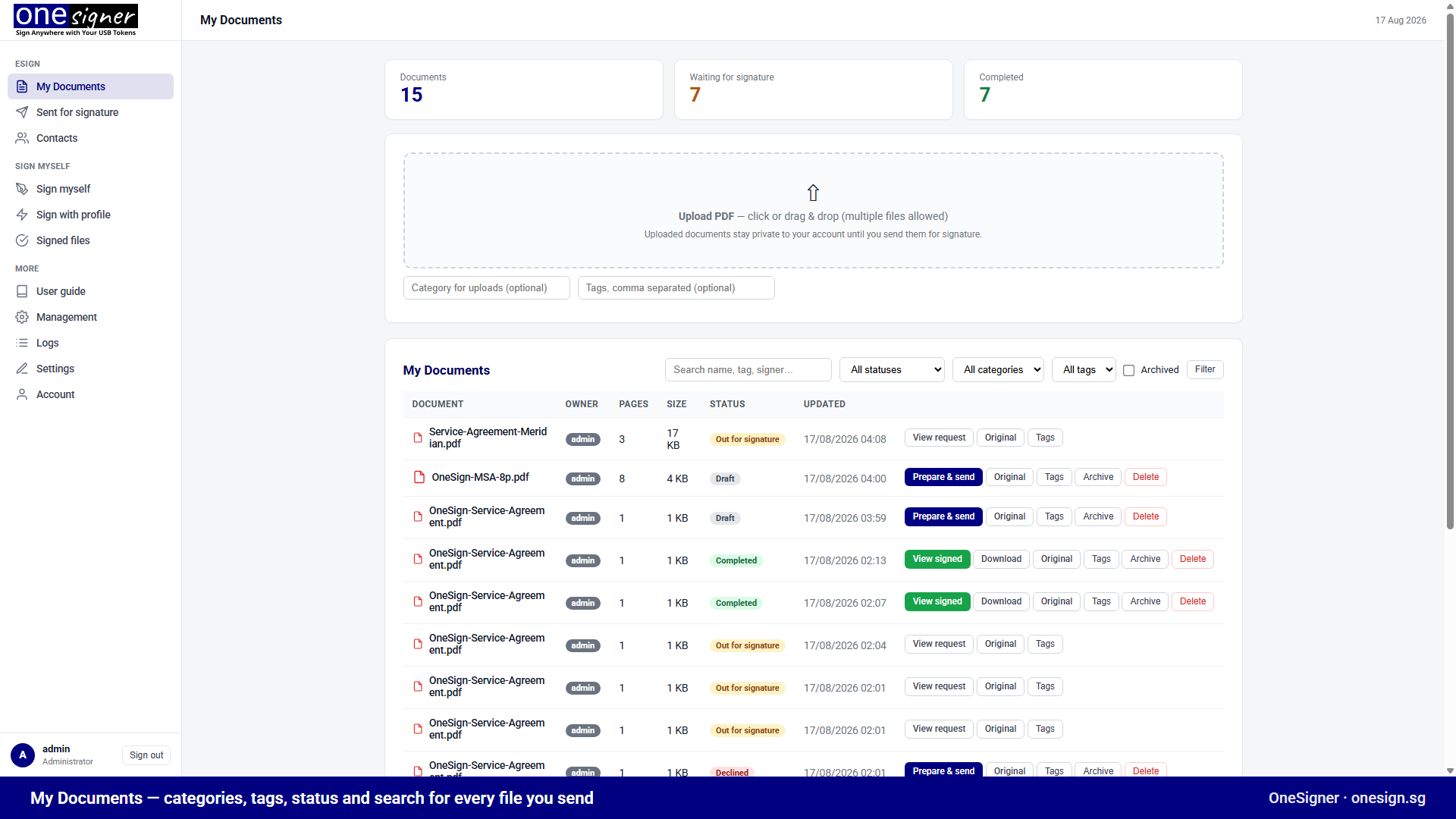
Drag the PDF onto My Documents. Dashboards show what's in draft, out for signature and completed; categories, tags and search keep hundreds of documents manageable. Documents stay private until sent.
2. Prepare — Fields per Signer
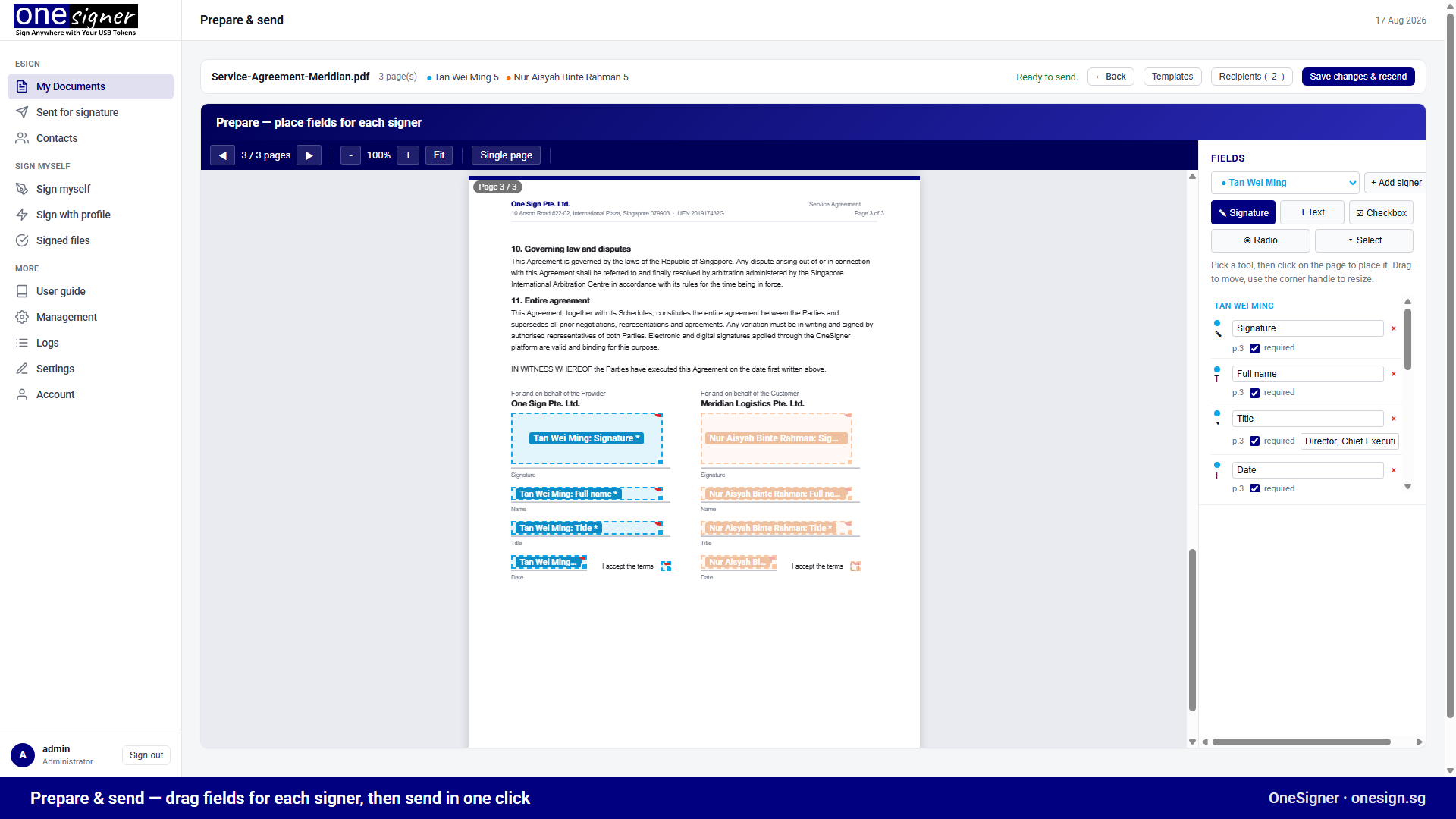
Click Prepare & send. Add both recipients (from Contacts or typed in), then place fields: select the signer, pick Signature / Text / Checkbox / Radio / Select, click the page. Each signer's fields are colour-coded; drag to move, corner-handle to resize, mark required. Our agreement gets each signer a Signature, Full name, Title, Date and an "I accept the terms" checkbox on the execution page. The layout can be saved as a template for next time.
3. Send
Write a short message and send. Signer 1 gets a branded email immediately; signer 2 will only be invited once signer 1 finishes — the portal enforces the order. Optional per-signer access codes add a second factor you share by phone or SMS.
4. The Signing Ceremony
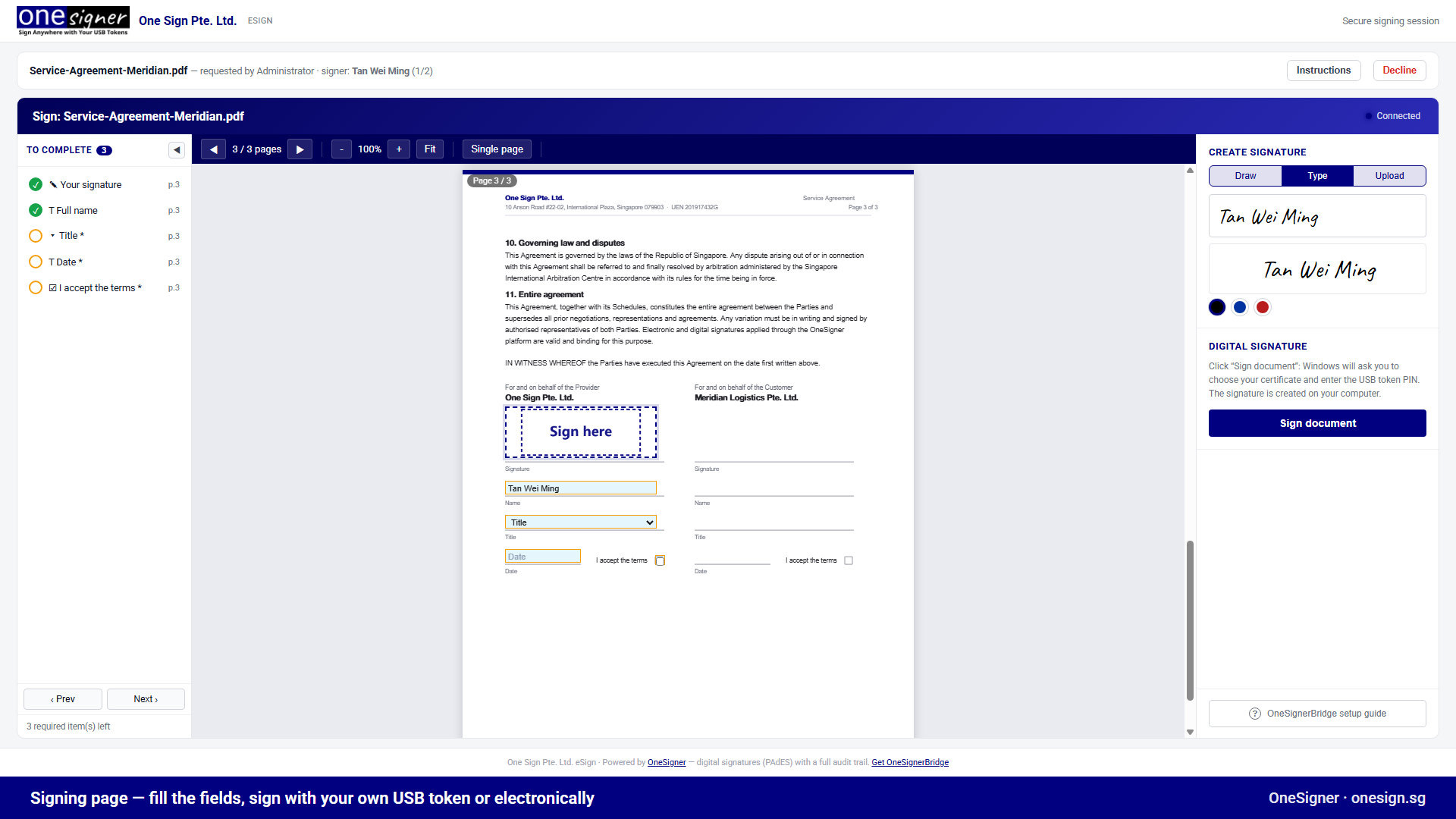
The signer opens the link in any browser — no account. A To complete checklist tracks required items; fields are filled inline on the rendered PDF. For the signature: draw, type or upload. Then, depending on the mode you chose for this signer:
- My USB token: click Sign document → Windows certificate picker + PIN → a personal digital signature computed on the signer's machine via OneSignerBridge.
- Electronic: submit → the server stamps the values and seals the document with your organisation certificate.
Signers can also decline with a reason — you're notified immediately.
5. Tracking and the Audit Trail
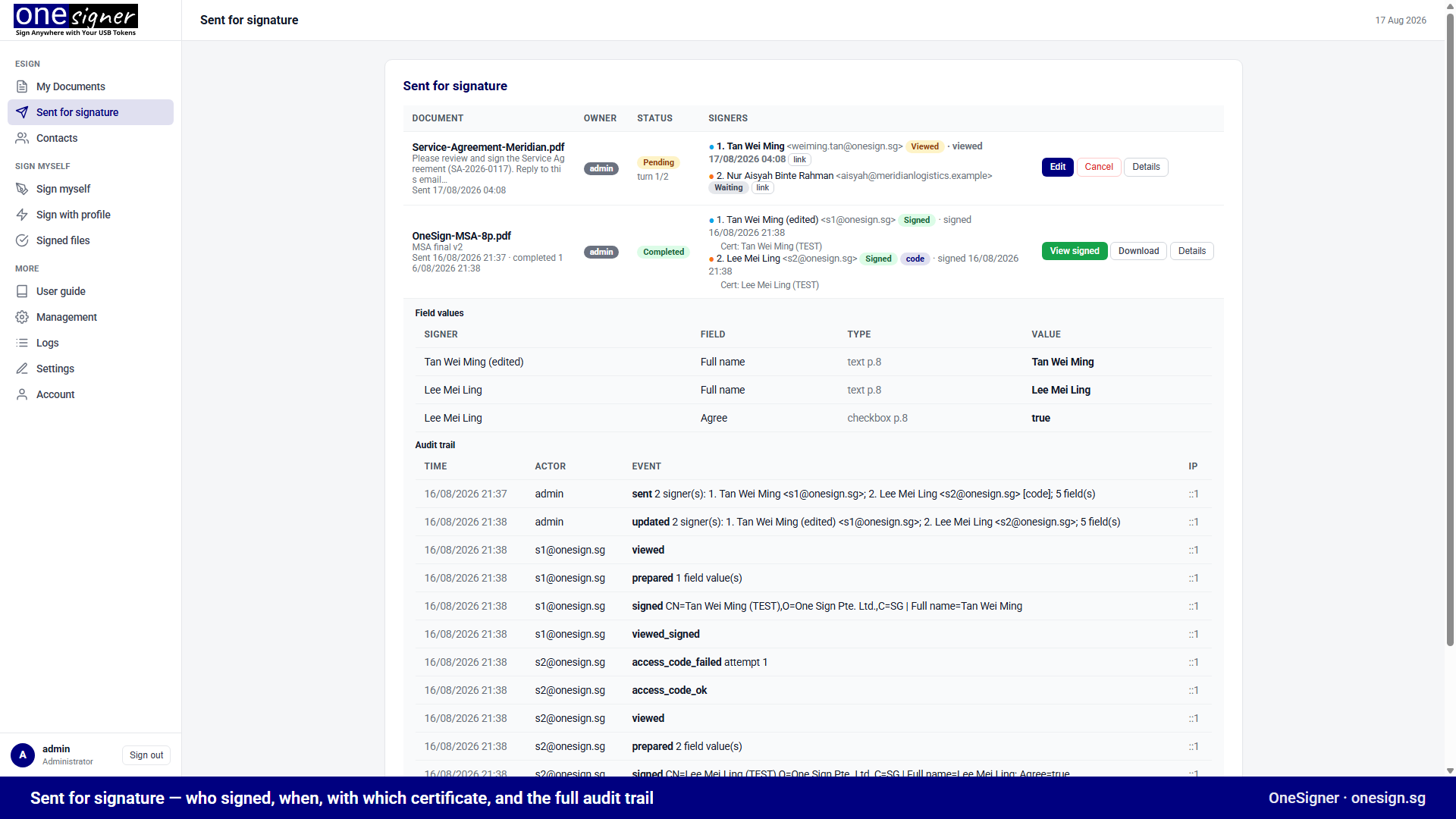
Sent for signature shows each signer's state (waiting → viewed → signed, with the certificate used), submitted field values, and the complete event log — sent, viewed, access-code attempts, prepared, signed — each timestamped with IP. Automatic reminders nudge whoever's turn it is; expiry closes stale requests.
6. Done
View signed opens the final PDF in the built-in viewer (no dependence on browser PDF plugins); Download delivers the file. In Adobe Acrobat, both signatures verify independently — signer 1's signature remained valid when signer 2 signed, because each signature is a separate incremental revision.
Try It on Your Own Paper
The whole flow above ships in every OneSigner license — and the 30-day trial. Setup notes: SMTP & branding · step-by-step guide.