Visual Signing with OneSignerBridge
Aug 21, 2026 · 2,277 views
Sometimes automation is the wrong tool: you have one contract, it needs your signature right there, and the position is different every time. Sign myself (visual signing) renders the PDF in your browser and lets you place the signature box anywhere by clicking or dragging — then signs it with a real digital signature.
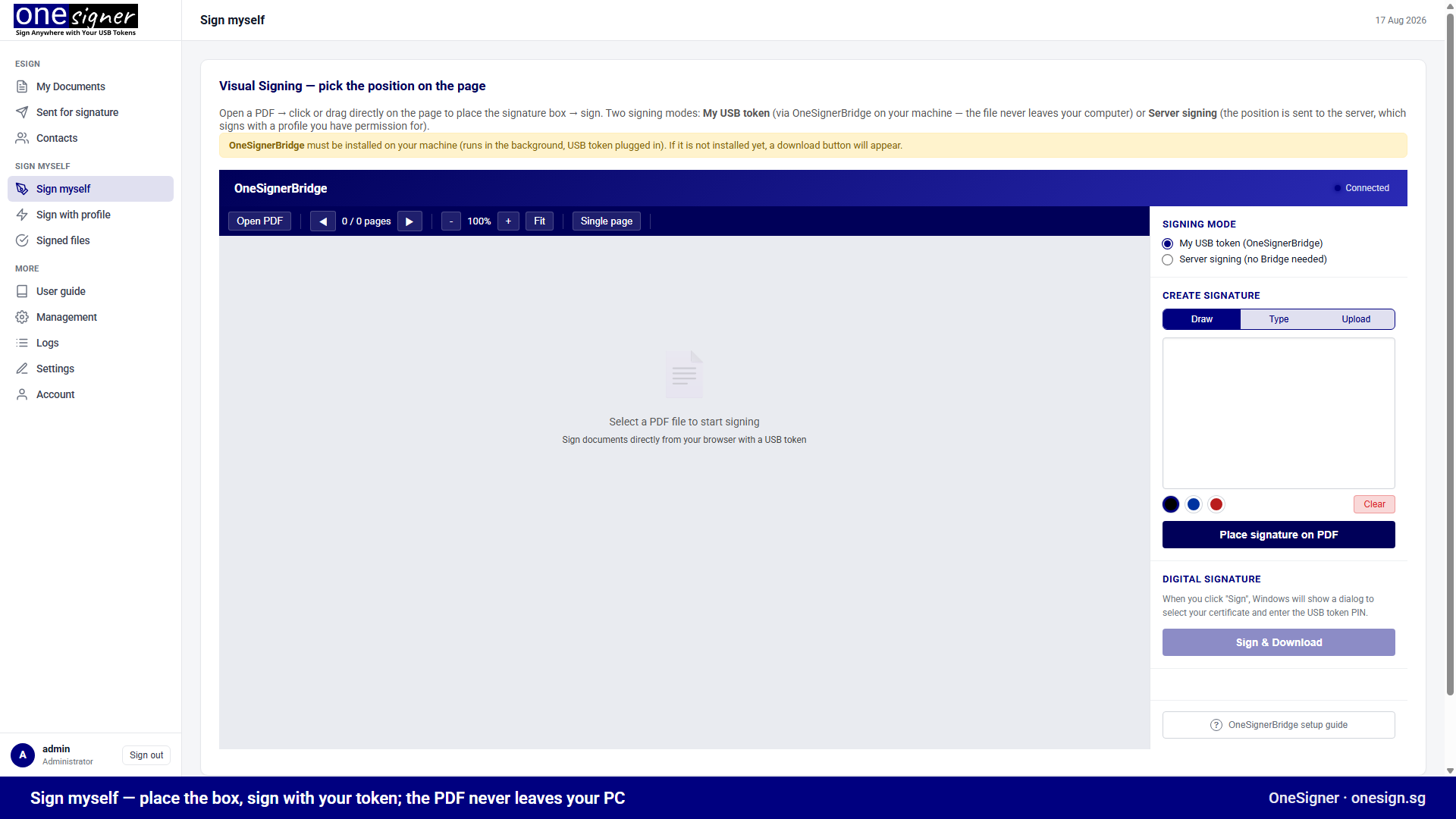
Two Signing Modes
1. My USB token (OneSignerBridge) — the PDF never leaves your machine
- Install the free OneSignerBridge helper once. It runs in the background on your Windows machine and connects to the page over a local secure WebSocket (
wss://localhost:9505). The page shows Connected when it is ready; a download button appears if it is not installed yet. - Open a PDF — it is rendered locally in the browser.
- Click Sign: Windows shows the certificate picker and your token PIN prompt. The signature is computed by your token, on your computer.
- Privacy property: the document is processed entirely client-side — the file is never uploaded to the server.
2. Server signing (no Bridge needed)
- Choose a server-side signing profile you have permission for; the selected position is sent to the server, which signs with the profile's certificate.
- Useful when the certificate lives on the server's token (e.g. an organisation seal) or the signer has no Bridge installed.
Step by Step
- Web portal → Sign myself.
- Open PDF — scroll all pages, or switch to single-page view; zoom as needed.
- Create your visible signature: Draw, Type, or Upload an image; pick a colour.
- Click Place signature on PDF, then click (or drag a box) exactly where the signature belongs. A ghost box follows the cursor; resize with the corner handle.
- Click Sign & Download (Bridge mode) or Sign (server mode). Done — the signed file downloads, and server-signed portal copies are also stored under Signed files.
What the Signature Contains
A standard PAdES digital signature: your certificate, signing time, and optional visible appearance (your drawn/typed image; or image + name + date in composed style). Any PDF reader verifies it — no OneSigner software needed on the recipient's side.
Troubleshooting the Bridge
- "Not connected": confirm OneSignerBridge is running (system tray) and the token is plugged in; then reload the page.
- Certificate picker empty: the certificate must appear in
certmgr.msc→ Personal — install the token vendor's driver. - Corporate browsers: the Bridge listens only on
localhost— no inbound firewall rule is needed, but endpoint-security tools that block local WebSockets must allow port 9505.
Related
- Recipients signing your documents visually: Send for signature (the same Bridge powers signer-side token signatures).
- Doing this programmatically: Positional Signing API.