Branding & Email (SMTP) Setup
Your signers should see your organisation — not a generic tool. OneSigner brands the portal, the signing pages and every notification email, and sends all mail through your own SMTP account.
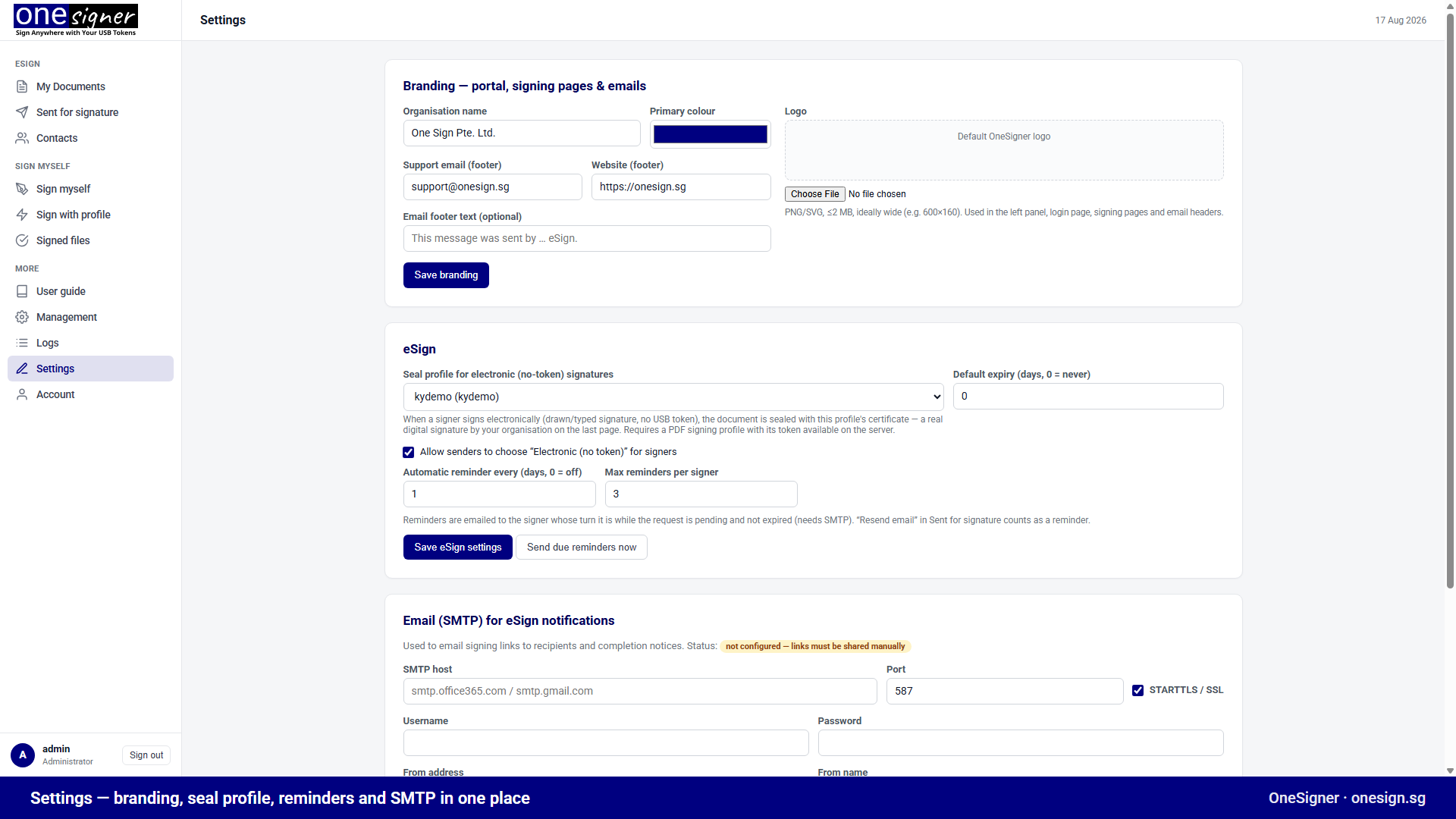
Branding
Web portal → Settings → Branding:
- Organisation name — shown in the header of signing pages and emails.
- Logo — PNG/SVG up to 2 MB, ideally wide (e.g. 600×160). Appears on the portal side panel, login page, signing pages and email headers.
- Primary colour — applied across the portal and emails.
- Support email & website — shown in page and email footers.
- Email footer text — an optional custom line for every notification email.
Click Save branding — changes apply immediately, including to signing pages already sent out.
SMTP for eSign Notifications
Settings → Email (SMTP). OneSigner uses it to email signing links, reminders, decline notices and completion notifications.
- Host / Port — e.g.
smtp.office365.comorsmtp.gmail.com, port 587 with STARTTLS (or 465 SSL). - Username / Password — the password is stored encrypted (Windows DPAPI), never in plain text.
- From address / From name — what recipients see. Use a mailbox on your own domain and make sure SPF/DKIM cover it for good deliverability.
- Use the test send to confirm before going live.
No SMTP yet? eSign still works — the portal shows a copy-link button for each signer so you can deliver links via chat or your own mail client. The status banner reminds you links must be shared manually.
Provider Notes
- Microsoft 365: enable SMTP AUTH for the mailbox, or use an app password when MFA is on.
- Gmail / Google Workspace: use an App Password (regular passwords are rejected).
- Transactional providers (SES, Postmark, etc.): work fine — they are just SMTP endpoints with credentials.
Public URL for Signing Links
Links in emails use your configured public URL — not whatever hostname a browser happened to use — so set your Cloudflare Tunnel / custom domain before sending externally. Recipients then sign via https://sign.yourcompany.com/... on your own domain.