OneSigner 2026.8.29: Signing Queue, Bring-Your-Own-Certificate HTTPS, and OneSignTool 2.1
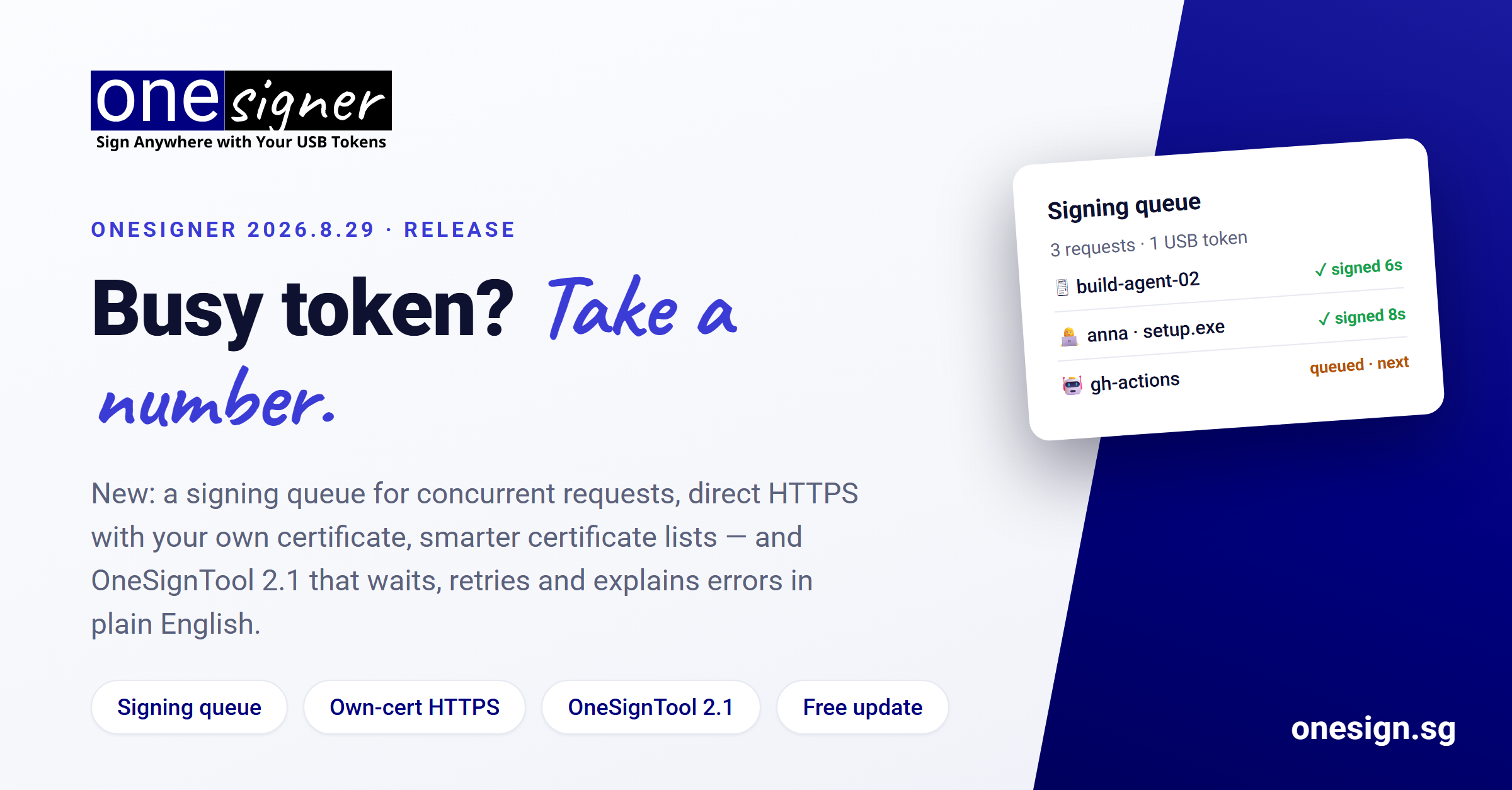
OneSigner 2026.8.29 and OneSignTool 2.1 are out. This release is about one thing: what happens when several people — or several build agents — hit the same USB token at the same time. We also removed the last reason to depend on Cloudflare, and made certificate lists tell you what each certificate actually is. All of it is a free update; the Config app shows an Update available banner on next launch.
1. Signing queue: concurrent requests no longer collide
A USB token or smart card signs one thing at a time. Until now, if two uploads, a CI job and a portal user reached the token in the same second, the second and third calls could fail with sporadic "card in use" or "process timed out" errors — and everyone had to retry by hand.
The service now has a single, global first-in-first-out signing queue in front of the token. Every path goes through it: PDF signing, Authenticode code signing, the Azure Key Vault-compatible proxy used by OneSignTool/AzureSignTool, the eSign seal, the portal's "Sign myself" and the watched folders. A request that arrives while the token is busy simply keeps its connection open and waits its turn; in practice that is a few seconds. Only if the token stays busy for the whole wait window (default 4 minutes, Settings:SigningEngine:QueueMaxWaitSeconds) does the caller get HTTP 503 with a Retry-After header instead of a failed signature. A client that disconnects while waiting leaves the queue immediately.
We tested it the obvious way — three OneSignTool sign commands launched in parallel against one SafeNet token: all three succeeded, finishing after 6, 8 and 10 seconds. You can watch the queue on GET /api/signing/status, which now returns a queue object (busy, waiting, active request, completed count, last wait time).
2. OneSignTool 2.1: waits, retries, and speaks plain English
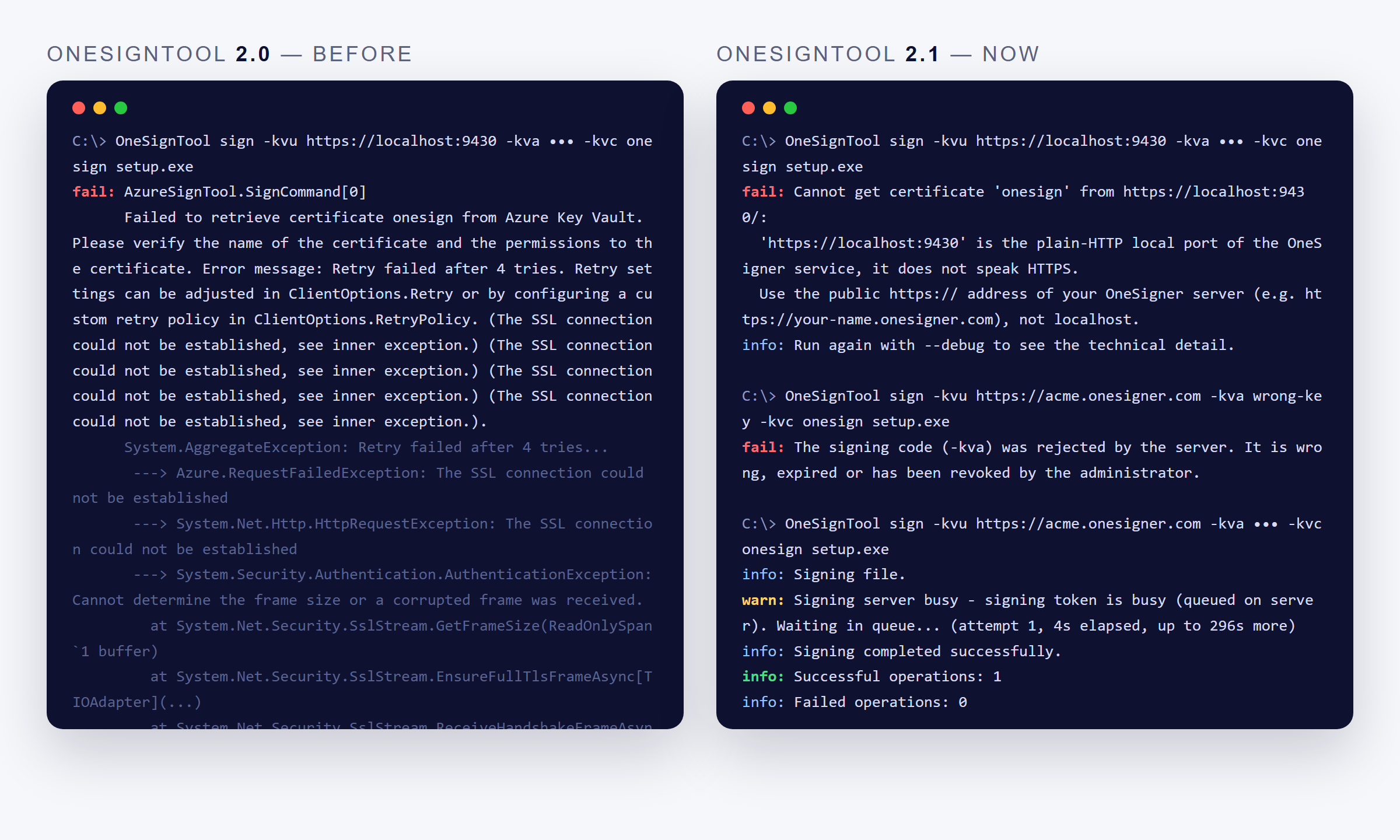
The other half of the fix lives in the command-line tool. OneSignTool 2.1 understands the server's busy answers (503, 429, gateway 502/504/524 and dropped connections) and waits and retries automatically, honouring Retry-After, for up to --queue-timeout seconds (default 300). While it waits it says so — "Signing server busy — waiting in queue… (attempt 2, 34s elapsed)" — instead of dumping a stack trace. Genuine mistakes (wrong key, unknown certificate name, bad address) are still reported immediately.
Those genuine mistakes are now explained in one sentence a non-developer can act on. A partner who tried https://localhost:9430 used to get 120 lines of System.AggregateException; now they get:
'https://localhost:9430' is the plain-HTTP local port of the OneSigner service, it does not speak HTTPS. Use the public https:// address of your OneSigner server, not localhost.
DNS failures, an http:// address, a rejected signing code, a certificate name that does not exist on the server, a token that is unplugged or locked, a wrong PIN, a tunnel that is down — each has its own message. Add --debug when you do want the full technical detail.
Download: OneSignTool 2.1.0 (single self-contained exe, signed by One Sign Pte. Ltd.). The binary also finally carries proper version metadata — --version prints 2.1.0.
3. Web Server tab: bring your own certificate
OneSignTool and AzureSignTool require an https:// address (the Azure SDK refuses bearer-token authentication over plain HTTP). Until now the answer was the built-in Cloudflare Tunnel, which is still the zero-config option and still free with every license. But some customers run OneSigner inside a network where an outbound tunnel is not allowed, or already own a domain and a certificate and want to self-host directly.
The Custom Domain tab has become Web Server, with two options side by side:
- Option A — Cloudflare Tunnel: unchanged. No open ports, no certificate to manage.
- Option B — Direct HTTPS with your own certificate: enable the listener, pick a port (9443 by default), and choose a certificate either from the Windows certificate store (anything with a private key and the Server Authentication purpose — a certificate from your CA, IIS, or win-acme/Let's Encrypt) or from a PFX file. The tab checks the certificate on the spot — name, issuer, validity, private key — and prints the exact
-kvu https://your-domain:portvalue to give your team.
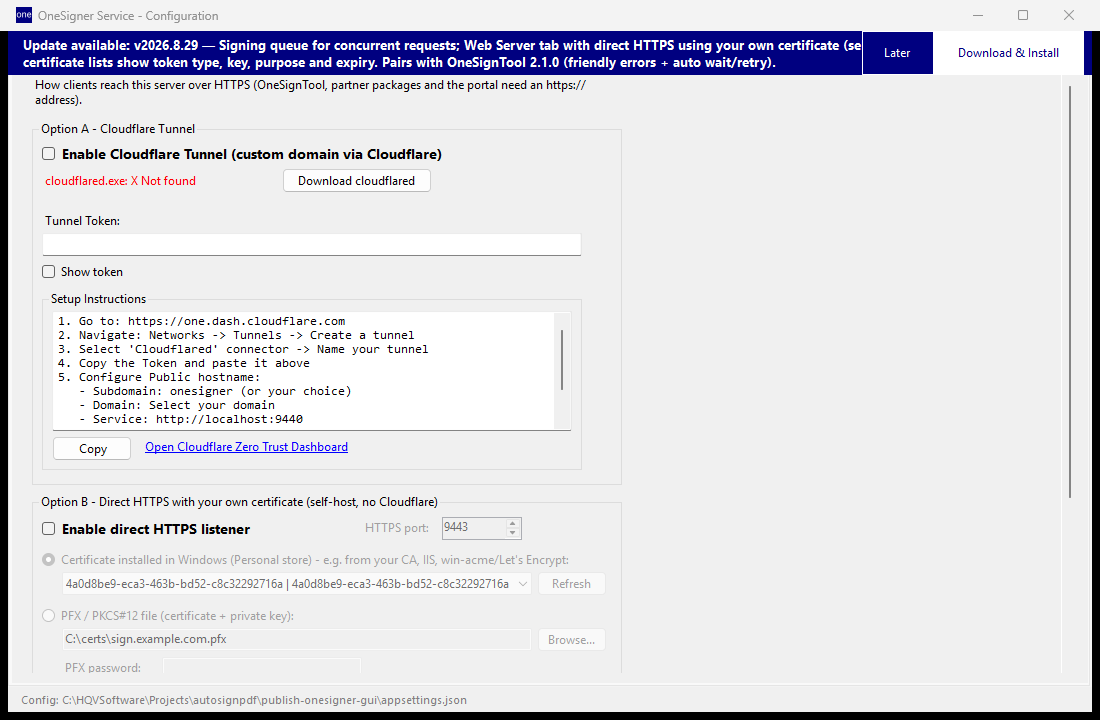
A misconfigured certificate can no longer take the service down: if the PFX password is wrong or the thumbprint is not found, the service keeps running on HTTP, logs the reason, and reports it on GET /api/https/status. The Public URL field is now shared by both options and is what partner packages, e-mails and guides use.
Self-hosting checklist: point your domain's A record at the machine, open/forward the HTTPS port on the router and Windows Firewall, make sure the certificate name matches the domain, restart the service.
4. Certificate lists that say what they are
If your machine holds a dozen certificates — some on a SafeNet token, one on a YubiKey, a few software PFX imports, an expired one from last year — the old dropdown showed a name and a date and left you guessing. Every certificate list in the Config app now shows the token type (SafeNet, YubiKey, smart card, ePass, software PFX), the key algorithm and size, the purposes from the certificate itself (Document Signing, Code Signing, Email, Client Auth…) and the expiry. Expired certificates and certificates without a signing key usage are flagged and sorted to the bottom; valid hardware-token certificates come first.
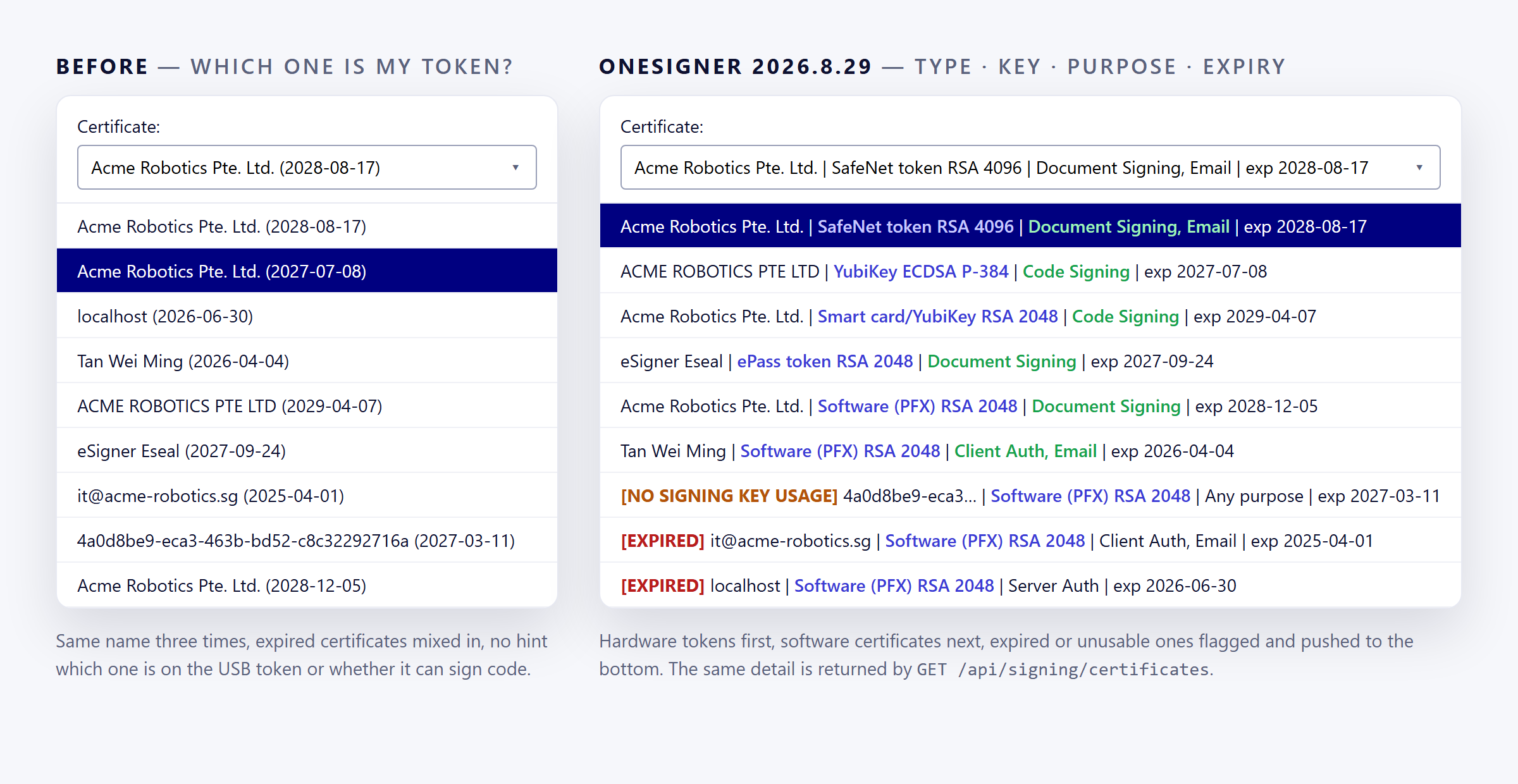
The same detail is available to integrators: GET /api/signing/certificates now returns keyAlgorithm, usages[], isExpired, canSign, isHardwareToken, supportsPdf and supportsCodeSign.
Upgrade
- OneSigner-Setup 2026.8.29 — run over the existing installation; your
appsettings.jsonis kept. Or click Download & Install on the banner in the Config app. - OneSignTool 2.1.0 — replace the exe in your build scripts; the command line is unchanged. Existing partner packages keep working, they just get the new behaviour once the exe is swapped.
Nothing changes for keys and documents: the private key still never leaves the token, and files are still signed on your own machine.
Related: For the wider picture of what the platform does today, see PDF signing, code signing and a full eSign portal in one platform.